

Understand the structured view
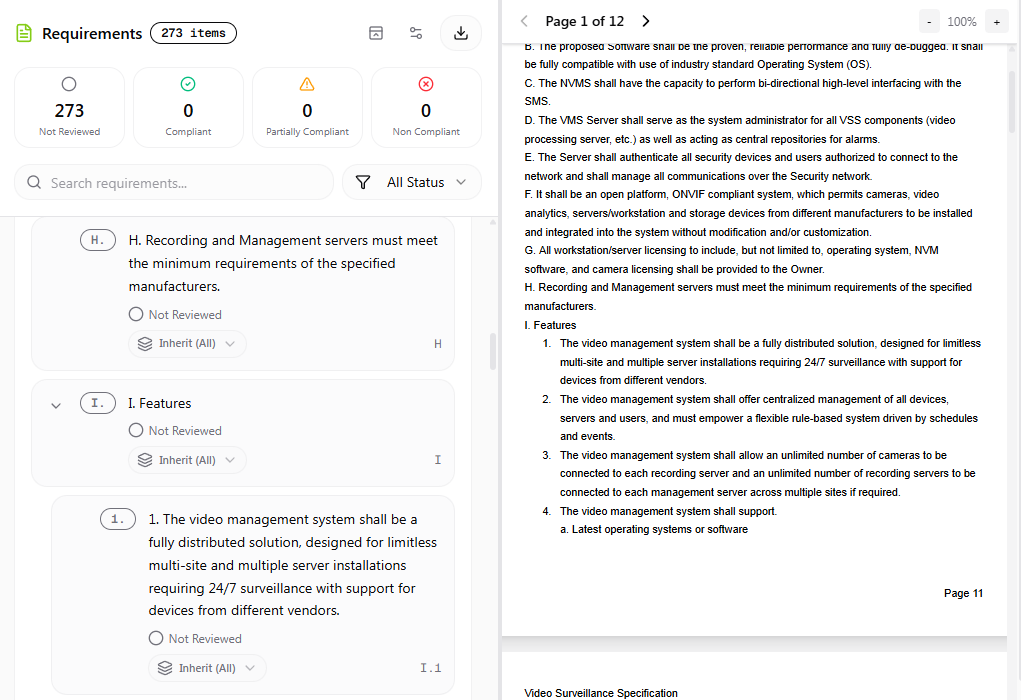
The RFP Viewer displays extracted requirements in a split layout:- Left panel — extracted requirements organized by parts, sections, subsections, and clauses
- Right panel — the original PDF for side-by-side verification

- Requirements — structured list only
- PDF — original document only
- Split — both side by side
Verify extracted requirements
Confirm that:- All required sections are present
- Numbering aligns with the original document
- Native text-based PDFs
- Scanned PDFs (OCR processing)
- Structured and semi-structured tables
- Multi-level numbering formats
The extraction engine has been extensively tested across a wide range of real-world RFP documents. However, speXcompl.ai is in Early Access — occasional extraction inconsistencies may occur due to the diversity of formatting styles.If you notice missing sections, misaligned numbering, or structural inaccuracies, you may proceed with compliance while keeping those observations in mind. Contact support if needed — project refunds are available where appropriate.
Understand requirement status
At this stage, all items appear as Not Reviewed. The compliance summary at the top shows:- Total extracted items
- Review status breakdown