

Before running compliance evaluation, you must confirm that the correct SKUs are defined in Scope. A SKU represents a specific product model you intend to propose. Each SKU corresponds to a single product variant that will be evaluated against the RFP requirements. The Scope defines which SKUs are included in the compliance check.

Review scoped SKUs

If a Bill of Materials was uploaded or pasted during project creation, the system attempts to detect and match SKUs automatically.
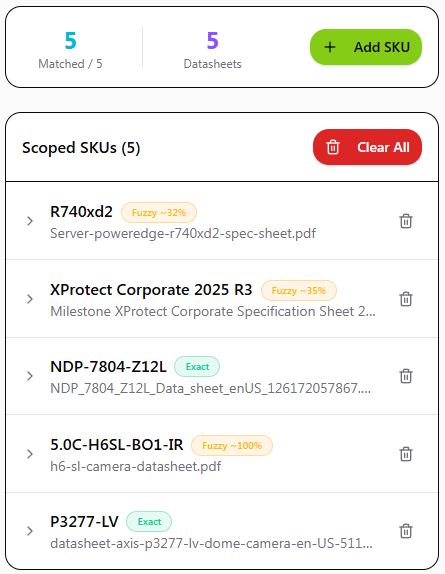
Scoped SKUs list showing 5 matched SKUs with match confidence indicators
At the top of the Scope page, you can see:
  • Total matched SKUs
  • Number of uploaded datasheets
Under Scoped SKUs, review the list and confirm:
  • All intended SKUs are listed
  • Each SKU is linked to the correct datasheet
  • No required SKUs are missing

Add or correct SKUs manually

If a SKU is missing or incorrectly matched, you can define it manually.
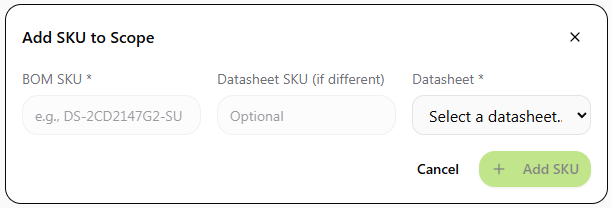
Add SKU to Scope dialog with fields for BOM SKU, Datasheet SKU, and Datasheet selection
1

Click Add SKU

2

Select the appropriate datasheet

3

Enter the exact model number

4

Confirm the addition

If necessary, you may remove incorrect SKUs or clear the list and redefine them. Manual configuration ensures the correct product variant is evaluated during compliance.
Do not run compliance evaluation until:
  • All intended SKUs are defined
  • Each SKU is linked to the correct datasheet
Compliance results are calculated only against the SKUs currently in Scope.
Think of Scope as defining what you are proposing.
  • The RFP defines what is required.
  • The SKUs define what you are offering.
  • Compliance compares the two.