> ## Documentation Index
> Fetch the complete documentation index at: https://docs.spexcompl.ai/llms.txt
> Use this file to discover all available pages before exploring further.
# Run compliance evaluation
> Select SKUs per section and run AI-powered compliance checks against RFP requirements.
Once extraction is verified and all SKUs are properly configured in Scope, you are ready to run compliance.
Before clicking **Check with AI**, confirm which SKUs are selected for each section or requirement tree. Compliance is always performed against the SKUs currently selected for that section.
## SKU selection per section
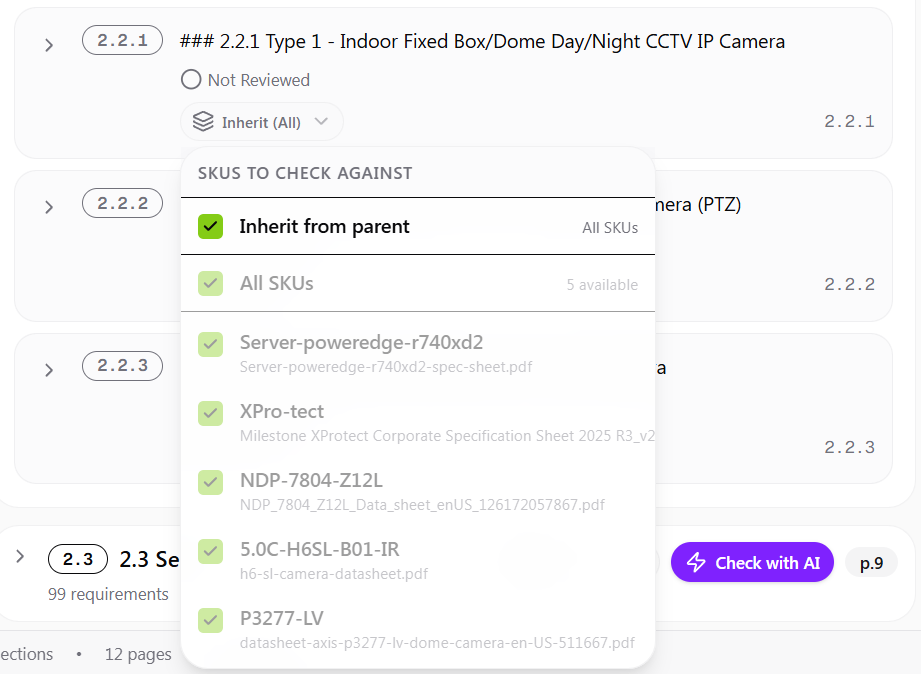
Each main section (for example, "2.2 Cameras") allows you to define which SKUs should be evaluated against its requirements.
 By default:
* The main section is set to **All SKUs**
* Child items inherit this setting
You may override this by selecting specific SKUs for a full section, a subsection, or an individual requirement. This gives you fine-grained control over evaluation logic.
## SKU inheritance logic
The system uses an inheritance model:
| Parent setting | Child behavior |
| ----------------------- | ------------------------------------ |
| All SKUs | Children inherit all SKUs |
| Specific SKUs selected | Children inherit those specific SKUs |
| Override at child level | Child uses its own selection |
This structure enables precise control when different requirement groups apply to different product types.
For example:
* **Cameras section** — evaluate only camera SKUs
* **Server section** — evaluate only server SKUs
## Selecting multiple SKUs
You may select multiple SKUs for a single section or requirement tree. When multiple SKUs are selected:
* Compliance is executed against each selected SKU
* Results are generated per SKU
* This enables side-by-side comparison of products
This is particularly useful when comparing alternative models.
## Performance considerations
Selecting all SKUs for every section may:
* Increase compliance processing time
* Produce a larger and more complex Excel export
* Include unnecessary evaluation results
For best performance and clarity, select only relevant SKUs per section. Avoid leaving all SKUs selected by default unless intentional.
## Run the evaluation and review results
Once SKU selection is confirmed:
Click the **Check with AI** button at the section or requirement level.
By default:
* The main section is set to **All SKUs**
* Child items inherit this setting
You may override this by selecting specific SKUs for a full section, a subsection, or an individual requirement. This gives you fine-grained control over evaluation logic.
## SKU inheritance logic
The system uses an inheritance model:
| Parent setting | Child behavior |
| ----------------------- | ------------------------------------ |
| All SKUs | Children inherit all SKUs |
| Specific SKUs selected | Children inherit those specific SKUs |
| Override at child level | Child uses its own selection |
This structure enables precise control when different requirement groups apply to different product types.
For example:
* **Cameras section** — evaluate only camera SKUs
* **Server section** — evaluate only server SKUs
## Selecting multiple SKUs
You may select multiple SKUs for a single section or requirement tree. When multiple SKUs are selected:
* Compliance is executed against each selected SKU
* Results are generated per SKU
* This enables side-by-side comparison of products
This is particularly useful when comparing alternative models.
## Performance considerations
Selecting all SKUs for every section may:
* Increase compliance processing time
* Produce a larger and more complex Excel export
* Include unnecessary evaluation results
For best performance and clarity, select only relevant SKUs per section. Avoid leaving all SKUs selected by default unless intentional.
## Run the evaluation and review results
Once SKU selection is confirmed:
Click the **Check with AI** button at the section or requirement level.
 After processing, click any requirement to expand it and display:
* Compliance result per selected SKU
* Confidence score
* Extracted reasoning
* Source references with page numbers
After processing, click any requirement to expand it and display:
* Compliance result per selected SKU
* Confidence score
* Extracted reasoning
* Source references with page numbers
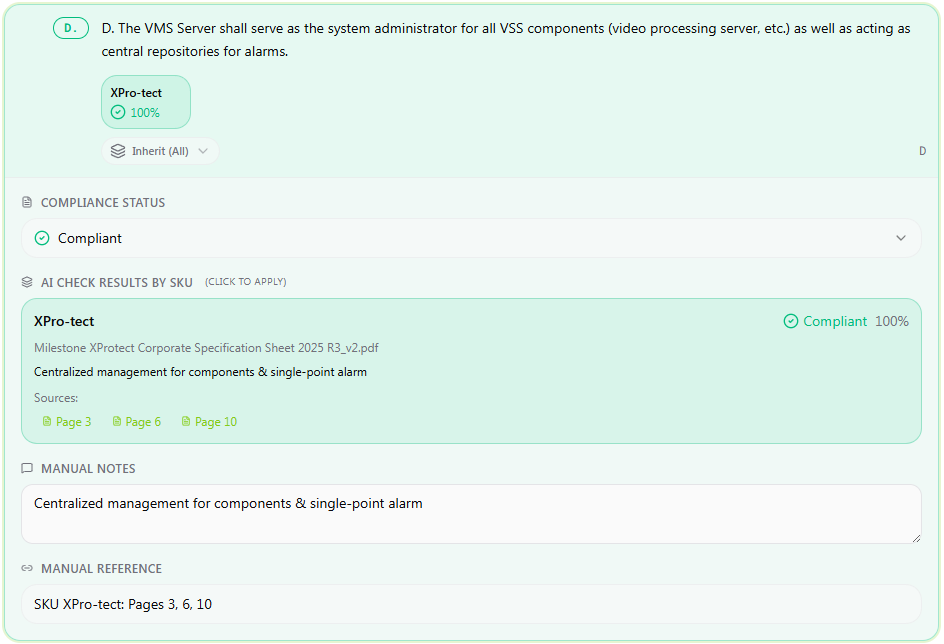 Each selected SKU is evaluated independently. If multiple SKUs were selected, separate results are displayed for each one.
## Evidence and traceability
Each AI result includes:
* A summarized reasoning statement
* Direct references to source pages within the linked datasheet
* A confidence percentage
Each selected SKU is evaluated independently. If multiple SKUs were selected, separate results are displayed for each one.
## Evidence and traceability
Each AI result includes:
* A summarized reasoning statement
* Direct references to source pages within the linked datasheet
* A confidence percentage
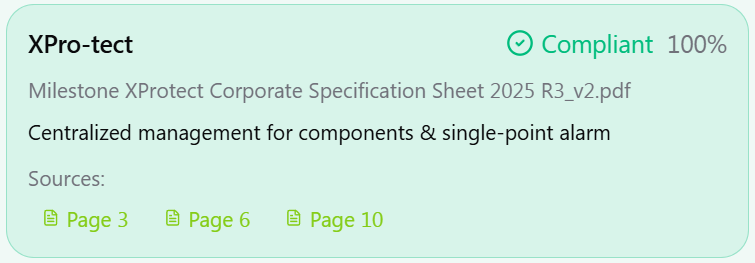 Clicking a source page navigates directly to the referenced location in the document. This ensures compliance decisions are evidence-backed and traceable.
The confidence percentage represents the system's confidence in the evaluation based on the clarity and strength of supporting evidence. **It does not represent percentage compliance.**
* A **higher** confidence score indicates clear alignment between the requirement and datasheet language.
* A **lower** confidence score may indicate ambiguity in wording, partial matches, or limited explicit evidence.
Always review the reasoning and referenced sources before applying the compliance status.
Clicking a source page navigates directly to the referenced location in the document. This ensures compliance decisions are evidence-backed and traceable.
The confidence percentage represents the system's confidence in the evaluation based on the clarity and strength of supporting evidence. **It does not represent percentage compliance.**
* A **higher** confidence score indicates clear alignment between the requirement and datasheet language.
* A **lower** confidence score may indicate ambiguity in wording, partial matches, or limited explicit evidence.
Always review the reasoning and referenced sources before applying the compliance status.