> ## Documentation Index
> Fetch the complete documentation index at: https://docs.spexcompl.ai/llms.txt
> Use this file to discover all available pages before exploring further.
# Configure scope
> Define and verify the SKUs (product models) that will be evaluated against RFP requirements.
Before running compliance evaluation, you must confirm that the correct SKUs are defined in Scope.
A **SKU** represents a specific product model you intend to propose. Each SKU corresponds to a single product variant that will be evaluated against the RFP requirements. The Scope defines which SKUs are included in the compliance check.
## Review scoped SKUs
If a Bill of Materials was uploaded or pasted during project creation, the system attempts to detect and match SKUs automatically.
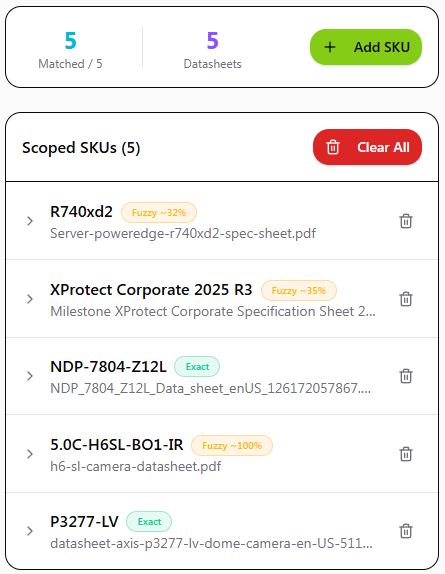 At the top of the Scope page, you can see:
* **Total matched SKUs**
* **Number of uploaded datasheets**
Under **Scoped SKUs**, review the list and confirm:
* All intended SKUs are listed
* Each SKU is linked to the correct datasheet
* No required SKUs are missing
## Add or correct SKUs manually
If a SKU is missing or incorrectly matched, you can define it manually.
At the top of the Scope page, you can see:
* **Total matched SKUs**
* **Number of uploaded datasheets**
Under **Scoped SKUs**, review the list and confirm:
* All intended SKUs are listed
* Each SKU is linked to the correct datasheet
* No required SKUs are missing
## Add or correct SKUs manually
If a SKU is missing or incorrectly matched, you can define it manually.
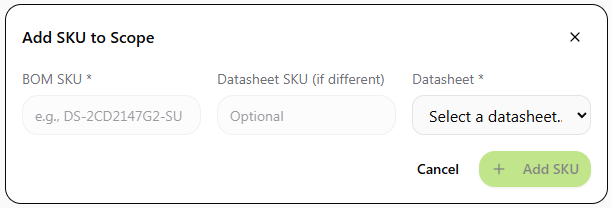 If necessary, you may remove incorrect SKUs or clear the list and redefine them. Manual configuration ensures the correct product variant is evaluated during compliance.
Do not run compliance evaluation until:
* All intended SKUs are defined
* Each SKU is linked to the correct datasheet
Compliance results are calculated only against the SKUs currently in Scope.
Think of Scope as defining **what you are proposing**.
* The **RFP** defines what is required.
* The **SKUs** define what you are offering.
* **Compliance** compares the two.
If necessary, you may remove incorrect SKUs or clear the list and redefine them. Manual configuration ensures the correct product variant is evaluated during compliance.
Do not run compliance evaluation until:
* All intended SKUs are defined
* Each SKU is linked to the correct datasheet
Compliance results are calculated only against the SKUs currently in Scope.
Think of Scope as defining **what you are proposing**.
* The **RFP** defines what is required.
* The **SKUs** define what you are offering.
* **Compliance** compares the two.